


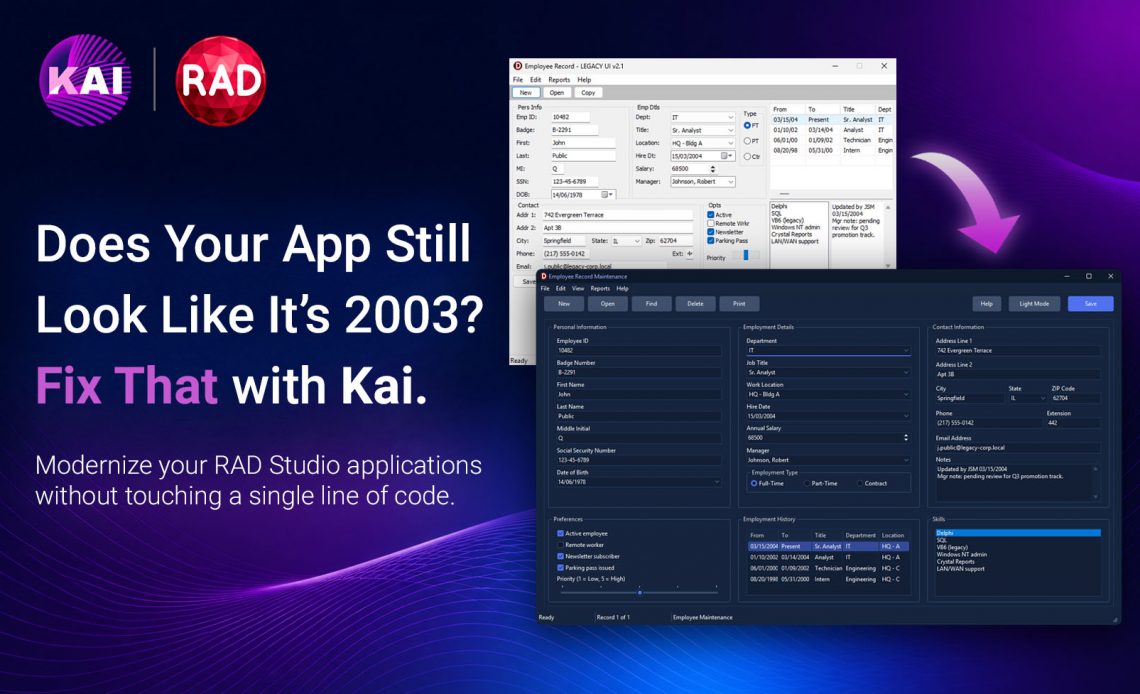
If you’ve been a RAD Studio developer for some time, chances are you have at least one application out there that still looks like it walked straight out of the early 2000s. And chances are, it works perfectly fine. The logic is solid, the customers depend on it, and honestly, why touch what isn’t broken?
Here is the good news: you don’t have to touch it. Not the part that matters, anyway.
You can give that application a modern, professional look, the kind that makes your users take you seriously at first glance, without rewriting a single line of your business logic.
This is what I tested with Kai, the AI assistant built directly into the RAD Studio IDE, and I have to say, the result was quite surprising.
Table of Contents
The Before and After
Here is what we’re working with. This is a fairly typical VCL form, the kind you’ll find in thousands of business applications running quietly and successfully in production right now:
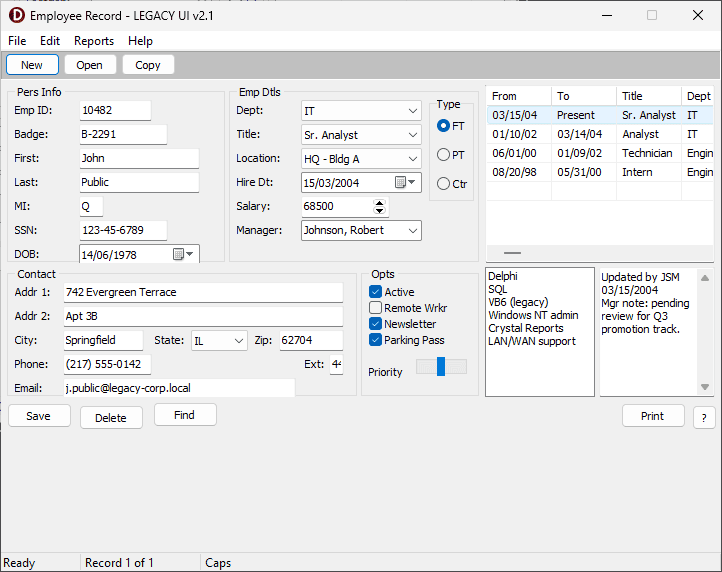
A classic VCL form: functional, reliable, and visually stuck in 2003.
And here is the same form, same data, same functionality, after a session with Kai:
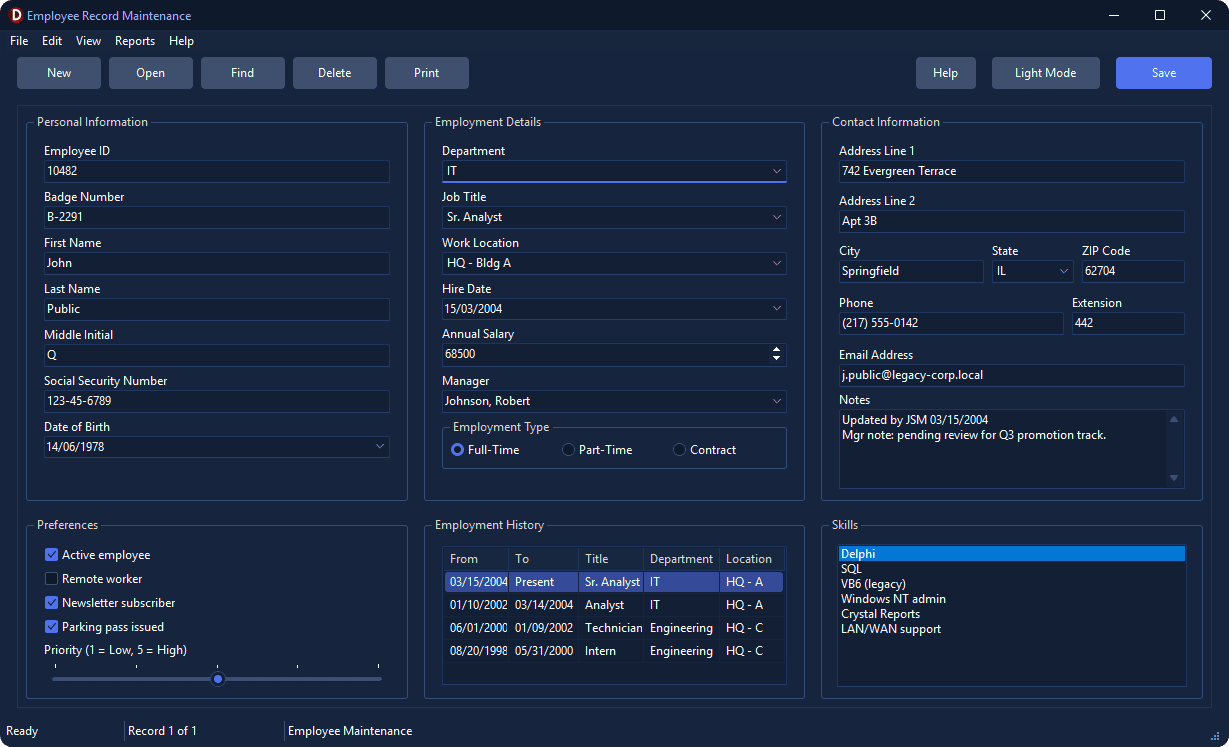
Same fields, same logic, same events. Just wearing modern clothes.
Nothing about how this form works has changed. Every event handler, every validation rule, every quirky bit of legacy code your predecessor wrote twenty years ago is exactly where it was. What changed is layout, spacing, typography, and VCL Styles; the stuff that makes users trust an application before they’ve even used it.
Wait, Isn’t This AI Rewriting My Code?
No, It is not.
This is purely an aesthetic pass. Think of it as your application getting a session of plastic surgery. Kai isn’t asked to touch business logic, and you can (and actually should) tell it explicitly not to. Think of it less as “AI is coding for me” and more as “AI is doing the tedious layout and styling work I’ve been putting off for a decade.”
If you’re one of the many RAD Studio developers who is a little wary of letting AI near your codebase, this is a good place to start. The risk is low, and it’s easy to keep AI on a short leash (more on that below).
The Approach: Plan First, Execute Later
The temptation with any AI tool is to throw a vague request at it and hope for the best. Please don’t. A few minutes of planning up front makes the difference between “that’ll do” and production-ready.
Here is roughly what the process looked like:
- Let Kai analyze an existing form first. Before asking for any changes, have Kai look at one form and describe what it sees: the layout, the grouping of controls, the overall structure. This confirms Kai actually understands the form, and it often surfaces layout problems you’ve stopped noticing after years of familiarity.
- Set clear guardrails. This is the step people skip and shouldn’t. Be explicit that business logic, event handlers, and code-behind must not be touched, only visual and layout properties should change, and if a component needs replacing, it should be a like-for-like swap with a modern equivalent.
- Ask for a plan before any changes are applied. Get Kai to propose a modernization plan: new layout, grouping, spacing, which components might benefit from restyling, before touching anything. Review it. Adjust it. Only then let it execute.
- Apply changes incrementally and watch it compile. This is where the IDE integration matters and something a general-purpose CLI coding tool can’t replicate without a bunch of tweaks and hoops: changes are applied form by form, control by control, and the project compiles as Kai goes. You’re not staring at a diff wondering if it will build. You’re watching your actual form transform in real time, inside the tool you already use every day.
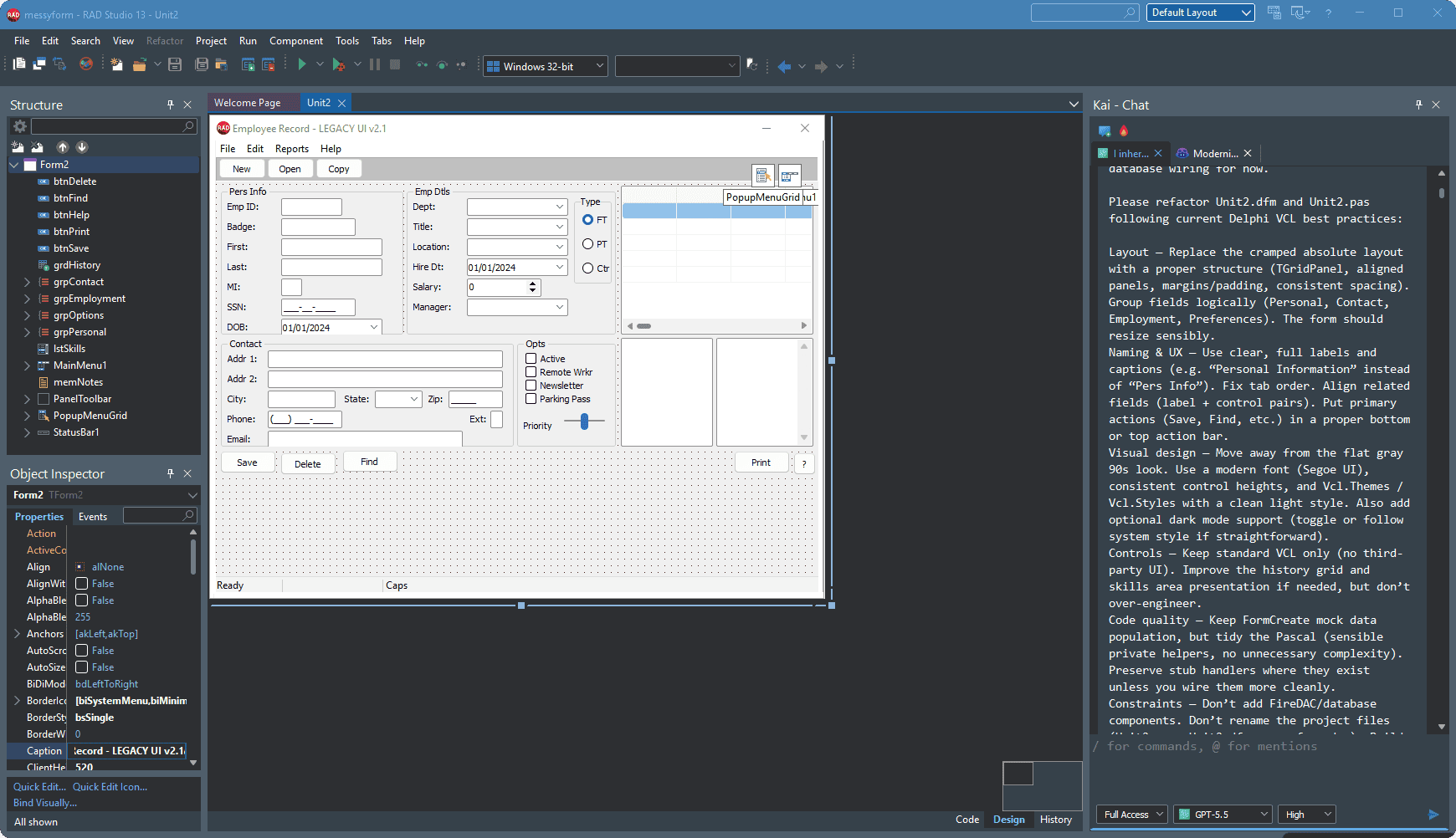
The old form loaded in RAD Studio, right before Kai executing the plan.
Example prompts to get you started
You don’t need to overthink your first prompt to get started. Something like:
“Analyze form X layout and structure. Don’t suggest code changes, I only want a visual and layout modernization plan. Group related fields logically and suggest a cleaner arrangement.”
or
“Act as a UI/UX expert reviewing a legacy business application. Identify which sections of this form could be visually grouped or restructured to feel more modern, without changing any functionality.”
or, once you have a plan you like:
“Apply the layout plan discussed at XXXX (being XXXX the name of the file where the plan is stored) to form Y. IMPORTANT: Do not modify any event handlers, procedures, or business logic, only visual properties, component positions, and styling.”
A small but useful tip if you don’t have a strong UX background yourself: just ask Kai to be one. Telling it explicitly to act as a UI/UX expert and to apply general best practices, before you even show it the form, puts it in the right frame of mind and improves the suggestions it comes back with.
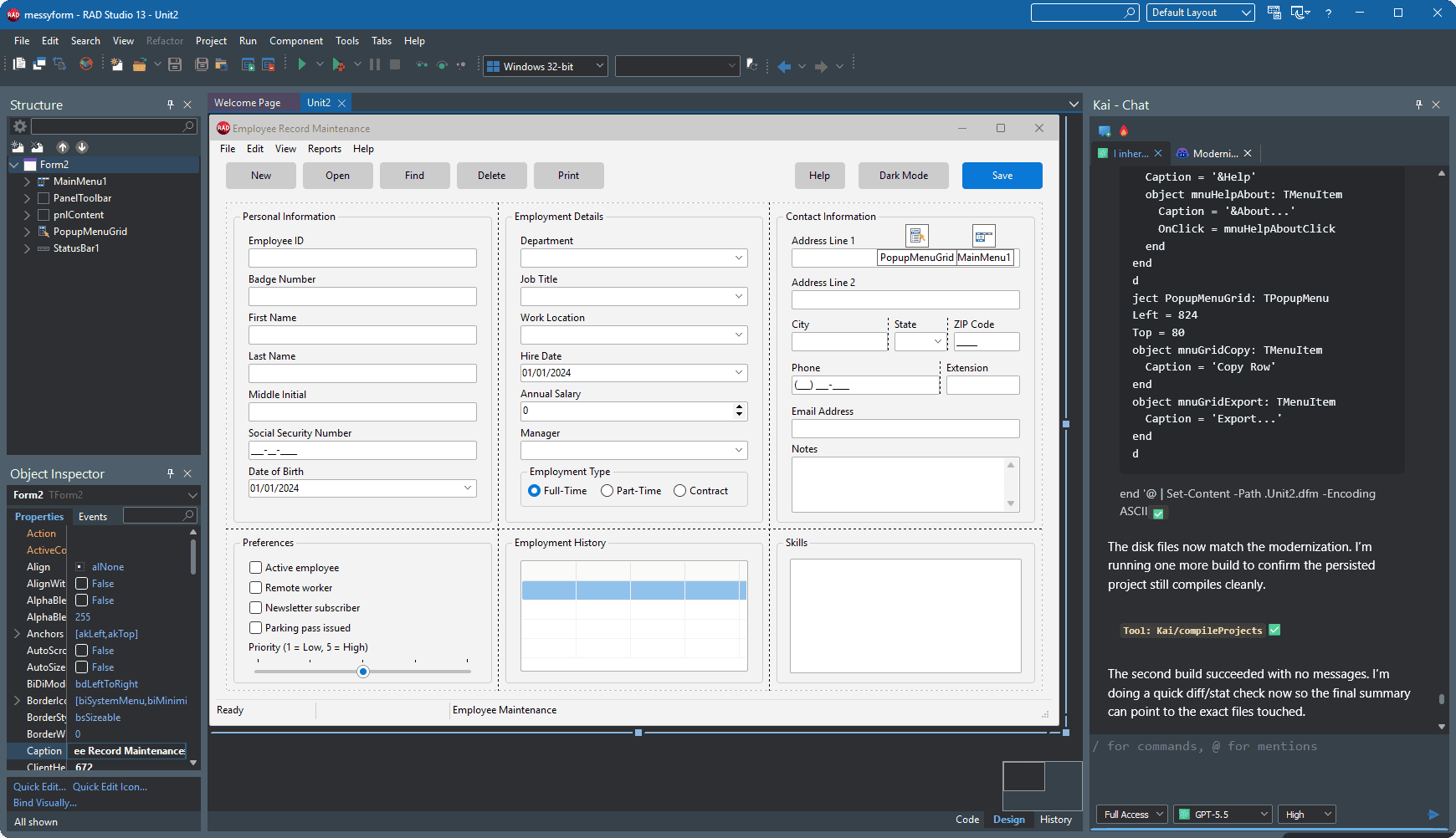
The same form in the designer after Kai applied the modernization plan.
It Won’t Be 100% Perfect, and That’s Fine
Let’s set expectations. In my own tests, Kai got me roughly 95% of the way there automatically. What was the remaining 5%?
- One group box ended up in a spot I didn’t like, so I dragged it where I wanted. That’s the beauty of RAD. I can see the design and quickly tweak it to my liking.
- VCL Styles were correctly identified and referenced by name, but still needed to be manually enabled under Project > Options. That step wasn’t automated in my tests.
That’s it. A few minutes of manual cleanup after what would otherwise have been days, if not weeks, of tedious rework. This isn’t a “one command, entire app modernized” story, but it turns something that used to be effectively impossible to justify (who has time to manually restyle 200 forms) into something you can knock out very fast.
A Note on Third-Party Components
If your forms lean entirely on the standard components that ship with RAD Studio, you’re in the best position: they support VCL Styles out of the box, and Kai can apply styling changes cleanly.
If you’re using third-party component suites, check that they support VCL Styles. Most well-maintained modern suites do, but it’s worth confirming rather than assuming, especially on older projects.
Another option is just not using VCL Styles altogether. RAD Studio does a great job with the standard VCL Windows APIs on its own. Sometimes just cleaning up the layout, updating typography, and swapping in more modern panels for better responsiveness is enough to make your application shine.
Another Note on Dark Mode
As a textbook millennial, I love my dark mode everywhere, but I can understand that this is not everyone’s cup of tea. RAD Studio comes with multiple VCL styles, and not all of them are dark mode. Play around with them to see which one fits your application or your audience best.
Do This on a Branch, Please
If you take away one practical habit from this post, make it this one: create a new branch before you start experimenting.
If I’ve learned one thing after using AI for quite some time, it’s that things go wrong sometimes and you can’t always figure out why. AI is anything but deterministic, so be ready to have a plan B to roll back changes. That’s where using version control, preferably git, is what saves you.
Let Kai loose on a form, see how it goes, and if you don’t like the result, delete the branch and move on. Your main or dev branches were never at risk. This is exactly the kind of low-stakes environment where it makes sense to be a bit more adventurous with AI, because the safety net costs you nothing.
Don’t Modernize Everything at Once
If you’re maintaining an ERP, CRM, or similar business application, you’re probably not looking at one form; you’re looking at dozens, if not hundreds. Don’t try to migrate all of them in one pass. Instead:
- Identify the patterns. Most forms in this kind of application share a handful of common layouts: data entry forms, master/detail views, search dialogs, and so on.
- Build a base reference document from your first successful migration. Once you have a form you’re happy with, ask AI to write down the approach: the guardrails you used, the layout conventions, the styling decisions.
- Reuse that document as context in every subsequent request, and keep updating it. Each new form gets faster and more consistent because you’re no longer starting from zero each time; you’re feeding Kai the patterns that already worked and updating it as you find potential new quirks or things to keep in mind.
Every project is different, and some forms will need more hand-holding than others. But in most cases, once you’ve cracked the pattern for a given form type, applying it across the rest of the application is fast.
The Bottom Line
You don’t need to justify a full rewrite to stop looking like a 2003 line-of-business app. You don’t need to trust AI with your business logic. You don’t need weeks of a UI/UX contractor’s time.
What you need is a clear plan, a few sensible guardrails, a throwaway git branch, and some time with Kai. For applications that have been quietly good enough for years, that’s often all it takes to make them look like they belong in 2026.
Curious what Kai can do for your RAD Studio applications? Learn more here.



Reduce development time and get to market faster with RAD Studio, Delphi, or C++Builder.
Design. Code. Compile. Deploy.
Free Delphi Community Edition Free C++Builder Community Edition


