Among the most notable features of Delphi, it’s worth mentioning the ability to enhance your Windows app development by interacting with other installed software products on your computer, using the COM technology for functionality embedding or automating.
In this article, we will show you how to automate the Mathcad Prime software in your Delphi VCL apps, by controlling the automation server and the fundamental methods and properties of its API, and how to implement an event sink in your app to handle events triggered by the Mathcad Prime software.
Mathcad Prime is an engineering calculation software developed by PTC. It is used by engineers to solve, document, and share calculations for product design.
It provides an Automation API as a type library (TLB), that you can import in Delphi IDE and use in your apps to launch the software, send data to be treated and analyzed in the opened worksheet, and get the result back to be shown in your app.
This can be done using Microsoft’s COM technology, which is a language-independent software component model that enables interaction between software components (the COM server) and developed applications (the COM client) running on the Windows platform. The COM client can be either on the same computer as the server or on another computer on the network (connected through the Distributed COM (DCOM) mechanism).

The key aspect of COM is that it enables the communication between clients and servers through interfaces clearly defined by the server developer. These interfaces provide a way for clients to ask a COM component which features it supports at run time. And to develop a COM client, you must understand the interface (properties and methods) exposed by the server to clients.
In order to access this interface, its type information is typically published as a type library that can be imported and used in Delphi VCL projects.
To get specific information about the published interfaces of PTC Mathcad Prime, check the developer documentation here.
Table of Contents
Importing Mathcad Prime API to Delphi
For communication with Mathcad Prime, you have to access its API through the “Ptc.MathcadPrime.Automation.dll” installed at the software top level of the installation directory.
- Open or create a new Delphi VCL project, and go to the menu “Components>Import a component”.
- In the new dialog window, choose “Import a type library” and click “Next”.
- Click “Add” and browse to the file “Ptc.MathcadPrime.Automation.tlb”.
- Create a unit for this type library (there is no need to install it on the Components Palette), or add it to the current project.
Now, Delphi will generate the unit “Ptc_MathcadPrime_Automation_TLB” that will be specific to the installed version of Mathcad Prime. You can save it for later use.
COM Client implementation
To implement your COM Client app, start a new (or open an existing) VCL project.
In the uses clauses, add your generated TLB unit and the following unit:
|
1 2 |
uses ..., System.Win.ComObj, Vcl.OleServer, Ptc_MathcadPrime_Automation_TLB, ... |
As you can see in the generated unit, the Mathcad Prime automation server has a dual interface, which will make the implementation tasks much easier (You can find the basics of using COM interfaces in Delphi documentation).
We need the following global variables to be used in the project:
| Variable for | Purposes and possible tasks | Variable type and its constructor and destructor |
| Mathcad Prime main application | Starting, hiding and closing the application.
Creating a new (or opening an existing) worksheet. Closing the active worksheet. | IMathcadPrimeApplication3
Constructor : “CoApplication.Create” Destructor : assign a nil value |
| Mathcad Prime active worksheet | Saving the worksheet.
Exchanging data between the server and client. | IMathcadPrimeWorksheet3
Constructor : “IMathcadPrimeApplication3.Open() as IMathcadPrimeWorksheet3” Destructor : “IMathcadPrimeApplication3.Close()” |
| Mathcad Prime events | Handling events raised by the user’s actions on the server app. | IMathcadPrimeEvents2
Constructor : (TMathcadPrimeEvents.Create) Destructor : assign a nil value |
So, we will declare variables as follows:
|
1 2 3 |
MPApplication : IMathcadPrimeApplication3; MPWorksheet : IMathcadPrimeWorksheet3; MPEvents : IMathcadPrimeEvents2; |
These variables are used in the code snippets as mentioned above.
Basic tasks
Now we will illustrate how you can use the Mathcad Prime API through some basic tasks. And :
- Use the “try … except … end;” instruction to force the code execution and to handle exceptions.
- In case of exception’s detection, show a message to inform the user about the task’s failure.
Start the application
For starting the app, implement the “try … except … end;” instruction to create an instance of the “IMathcadPrimeApplication3” interface (through the constructor of the “CoApplication” class) and assign it to the Application variable, and set the Application “Visibility” property to “True”.
Or, in the case of an exception, show a failure message with the exception message.
|
1 2 3 4 5 6 7 8 9 10 |
procedure TMainForm.BtnStartMathcadClick(Sender: TObject); begin try MPApplication := CoApplication.Create; MPApplication.Visible := True; except on E: Exception do ShowMessage('Problem to connect Mathcad Prime: ' + E.Message); end; end; |
Close the application
For closing the app, implement a condition to check if the Application variable is assigned (the variable does not have a null value), then release it by calling the Application “Quit()” method with the parameter “SaveOption_spSaveChanges”. Or show a failure message if an exception is detected.
|
1 2 3 4 5 6 7 8 9 10 11 12 |
procedure TMainForm.BtnCloseMathcadClick(Sender: TObject); begin if (MPApplication <> nil) then begin try MPApplication.Quit(SaveOption_spSaveChanges); except ShowMessage('Can not close Mathcad Prime, make sure it is actually running'); end; end; end; |
Show the application
To activate the app and bring it to the front, implement a condition to check if the Application variable is assigned, then set the Application “Visibility” property to “True” and call the “Activate()” method. Or show a failure message for the exception.
|
1 2 3 4 5 6 7 8 9 10 11 12 |
procedure TMainForm.BtnShowMathcadClick(Sender: TObject); begin if (MPApplication <> nil) then begin try MPApplication.Visible := True; MPApplication.Activate; except ShowMessage('Can not Activate worksheet. Make sure Mathcad Prime is running and worksheet is loaded'); end; end; end; |
Hide the application
To hide the app, implement a condition to check if the Application variable is assigned, then set the Application “Visibility” property to “False”. Or show a failure message in the case of an exception.
|
1 2 3 4 5 6 7 8 9 10 11 |
procedure TMainForm.BtnHideMathcadClick(Sender: TObject); begin if (MPApplication <> nil) then begin try MPApplication.Visible := False; except ShowMessage('Cannot make Mathcad Prime invisible. Make sure Mathcad Prime is running.'); end; end; end; |
Get the active worksheet in the application
To get an active worksheet in the app (to exchange data between the worksheet and the client app), implement a condition to check if the Application variable is assigned, then assign the Application “ActiveWorksheet” property value to the Worksheet variable.
(Use type casting, because the Application “ActiveWorksheet” type is not “IMathcadPrimeWorksheet3”).
|
1 2 3 4 5 |
procedure TMainForm.BtnGetActiveWorksheetClick(Sender: TObject); begin if (MPApplication <> nil) then MPWorksheet := MPApplication.ActiveWorksheet as IMathcadPrimeWorksheet3; end; |
Open an existing worksheet in the application
- First of all, you need a “TOpenDialog” with the filter “MCDX files (*.mcdx)” for Mathcad Prime worksheets, you have to set it either on design-time or on run-time through codes like in the snippet below.
- Next, implement a condition to check if the Application variable is assigned, then “Exit” the procedure.
- Now, if the Application variable is assigned, the procedure will continue and the “TOpenDialog” is executed.
- To open the selected file, implement the “try … finally … end;” instruction to call the Application “Open” function with the selected file’s name as a parameter, and assign the resulting value to the Worksheet variable (Use type casting). Or show a failure message in the case of an exception.
|
1 2 3 4 5 6 7 8 9 10 11 12 13 14 15 16 17 18 19 20 21 |
procedure TMainForm.BtnOpenWorksheetClick(Sender: TObject); var OpenDialog : TOpenDialog; begin if (MPApplication = nil) then Exit; OpenDialog := TOpenDialog.Create(Self); try OpenDialog.Filter := 'MCDX files (*.mcdx)|.mcdx|All files (*.*)|*.*'; OpenDialog.FilterIndex := 2; if OpenDialog.Execute then begin try MPWorksheet := MPApplication.Open(OpenDialog.FileName) as IMathcadPrimeWorksheet3; except ShowMessage('Couldn''t open Mathcad Prime file. Please check that Mathcad Prime is running and you have proper permissions'); end; end; finally OpenDialog.Free; end; end; |
Create a new worksheet in the application
To create a new worksheet in the app, implement a condition to check if the Application variable is assigned, then call the Application “Open” function with an empty string as a parameter and assign the resulting value to the Worksheet variable (Use type casting).
|
1 2 3 4 5 |
procedure TMainForm.BtnOpenNewWorksheetClick(Sender: TObject); begin if (MPApplication <> nil) then MPWorksheet := MPApplication.Open('') as IMathcadPrimeWorksheet3; end; |
Save modifications in the opened worksheet in the application
To save modifications in the active worksheet (existing as a local file) in the app, implement a condition to check if both Application and Worksheet variables are assigned, then call the Worksheet “Save” method. Or show a failure message in the case of an exception.
|
1 2 3 4 5 6 7 8 9 10 11 |
procedure TMainForm.BtnSaveWorksheetClick(Sender: TObject); begin if (MPApplication <> nil) and (MPWorksheet <> nil) then begin try MPWorksheet.Save; except ShowMessage('Can not save worksheet. If it is ''Untitled'' Use SaveAs'); end; end; end; |
Save the worksheet in the application as Mathcad worksheet (MCDX)
- First of all, you need a “TSaveDialog” option with the filter “MCDX files (*.mcdx)” for Mathcad Prime worksheets, you have to set it either on design-time or on run-time through codes like in the snippet below.
- Next, implement a condition to check if the Application variable is assigned, then “Exit” the procedure.
- Also, implement a condition to check if the Worksheet variable (the active worksheet) is assigned, then show a message to get the active worksheet, and “Exit” the procedure.
- Now, if both Application and Worksheet variables are assigned, the procedure will continue and the “TSaveDialog” is executed.
- To save as the selected file, implement the “try … finally … end;” instruction to call the Worksheet “SaveAs” function with the designated filename as a parameter. Or show a failure message in the case of an exception.
|
1 2 3 4 5 6 7 8 9 10 11 12 13 14 15 16 17 18 19 20 21 22 23 24 25 26 |
procedure TMainForm.BtnSaveAsWorskheetClick(Sender: TObject); var SaveDialog : TSaveDialog; begin if (MPApplication = nil) then Exit; if (MPWorksheet = nil) then ShowMessage('There is no selected worksheet: use ''Get Active Worksheet'''); SaveDialog := TSaveDialog.Create(Self); try SaveDialog.DefaultExt := 'mctx'; SaveDialog.Filter := 'MCTX files (*.mctx)|.mctx'; if SaveDialog.Execute then begin try MPWorksheet.SaveAs(SaveDialog.FileName); except ShowMessage('Unable to save worksheet. Please check permissions'); end; end; finally SaveDialog.Free; end; end; |
Save the worksheet in the application as a Mathcad template (MCTX)
It will be the same code as the previous one, but you have to change the filter and the default extension to “MCTX”.
|
1 2 3 4 5 6 7 8 9 10 11 12 13 14 15 16 17 18 19 20 21 22 23 24 25 26 27 28 29 |
procedure TMainForm.BtnSaveAsMctxClick(Sender: TObject); var SaveDialog : TSaveDialog; begin if (MPApplication = nil) then Exit; if (MPWorksheet = nil) then begin ShowMessage('There is no selected worksheet: use ''Get Active Worksheet'''); Exit; end; SaveDialog := TSaveDialog.Create(Self); try SaveDialog.DefaultExt := 'mcdx'; SaveDialog.Filter := 'MCDX files (*.mcdx)|.mcdx|All files (*.*)|*.*'; if SaveDialog.Execute then begin try MPWorksheet.SaveAs(SaveDialog.FileName); except ShowMessage('Unable to save worksheet. Please check permissions'); end; end; finally SaveDialog.Free; end; end; |
Close the active worksheet in the application
To close the active worksheet in the app, implement a condition to check if both Application and Worksheet variables are assigned, then:
- Call the Worksheet “Close” method with the parameter “SaveOption_spDiscardChanges”. Or show a failure message in the case of exception.
Now, to destroy the Worksheet object, add a condition to check if the Worksheet variable is assigned, then set its value to null.
|
1 2 3 4 5 6 7 8 9 10 11 12 |
procedure TMainForm.BtnCloseWorksheetClick(Sender: TObject); begin if (MPApplication <> nil) and (MPWorksheet <> nil) then begin try MPWorksheet.Close(SaveOption_spDiscardChanges); except ShowMessage('Unable to close worksheet. Please check that Mathcad Prime is running'); end; if (MPWorksheet <> nil) then MPWorksheet := nil; end; end; |
The event sink
Your client app can also respond to the events raised by the COM server. And to do this, you can simply use the events added to the generated component in the Object inspector. But if you are not using a Component wrapper or if the server uses COM+ events, you have to implement an event sink.
As it may sound difficult, in this section, we will show you how to properly implement an event sink for the Mathcad Prime COM server.
Interface descending class
Mathcad Prime events are declared in the interface “IMathcadPrimeEvents2 “, you can find it in the “Ptc_MathcadPrime_Automation_TLB” unit:
|
1 2 3 4 5 6 7 8 9 10 11 12 13 14 15 16 17 18 19 20 21 22 23 24 25 26 27 28 29 30 31 32 33 34 35 |
// *********************************************************************// // Interface : IMathcadPrimeEvents2 // Indicators : (256) OleAutomation // GUID : {A0ECA09F-83C8-4536-B841-A33D981FBAFA} // *********************************************************************// IMathcadPrimeEvents2 = interface(IUnknown) ['{A0ECA09F-83C8-4536-B841-A33D981FBAFA}'] function OnWorksheetSaved(const documentFullNameArg: WideString): HResult; stdcall; function OnWorksheetClosed(const documentFullNameArg: WideString; const documentNameArg: WideString): HResult; stdcall; function OnWorksheetModified(const documentFullNameArg: WideString; const documentNameArg: WideString; isModifiedArg: WordBool): HResult; stdcall; function OnWorksheetRenamed(const previousFullNameArg: WideString; const currentFullNameArg: WideString; const previousDocNameArg: WideString; const currentDocNameArg: WideString): HResult; stdcall; function OnWorksheetInputsOutputsSelected(const documentFullNameArg: WideString; const documentNameArg: WideString; const inputsArg: IMathcadPrimeInputs; const outputsArg: IMathcadPrimeOutputs): HResult; stdcall; function OnExit: HResult; stdcall; function OnWorksheetStatesGenerated(const documentFullNameArg: WideString; const documentNameArg: WideString; operationsArg: WorksheetOperations; const itemsStatesArg: IMathcadPrimeInputsOutputsStates; const conflictsArg: IMathcadPrimeInputsOutputsConflicts): HResult; stdcall; function OnWorksheetStatesGenerating(const documentFullNameArg: WideString; const documentNameArg: WideString; operationsArg: WorksheetOperations; const itemsStatesArg: IMathcadPrimeInputsOutputsStates; const conflictsArg: IMathcadPrimeInputsOutputsConflicts): HResult; stdcall; function OnWorksheetRequestToUpdateInputs(const documentFullNameArg: WideString; const documentNameArg: WideString; const setterArg: IMathcadPrimeValuesSetter): HResult; stdcall; end; |
Now, either on a new separate unit or in your existing project’s unit, declare the class “TMathcadPrimeEvents” with descendance from both “TInterfacedObject” and “IMathcadPrimeEvents2”, like the following:
|
1 2 3 |
type TMathcadPrimeEvents = class(TInterfacedObject, IMathcadPrimeEvents2) end; |
Now, the followimg positions should be added to this class :
- A boolean variable called “ShowEvents”.
- A constructor method (To initialize the ShowEvents value as “False”).
- The “TMathcadPrimeEvents” interface methods (copy them from the “Ptc_MathcadPrime_Automation_TLB” unit).
|
1 2 3 4 5 6 7 8 9 10 11 12 13 14 15 16 17 |
type TMathcadPrimeEvents = class(TInterfacedObject, IMathcadPrimeEvents2) ShowEvents : Boolean; function OnWorksheetSaved(const documentFullNameArg: WideString): HResult; stdcall; function OnWorksheetClosed(const documentFullNameArg: WideString; const documentNameArg: WideString): HResult; stdcall; function OnWorksheetModified(const documentFullNameArg: WideString; const documentNameArg: WideString; isModifiedArg: WordBool): HResult; stdcall; function OnWorksheetRenamed(const previousFullNameArg: WideString; const currentFullNameArg: WideString; const previousDocNameArg: WideString; const currentDocNameArg: WideString): HResult; stdcall; function OnWorksheetInputsOutputsSelected(const documentFullNameArg: WideString; const documentNameArg: WideString; const inputsArg: IMathcadPrimeInputs; const outputsArg: IMathcadPrimeOutputs): HResult; stdcall; function OnExit: HResult; stdcall; function OnWorksheetStatesGenerated(const documentFullNameArg: WideString; const documentNameArg: WideString; operationsArg: WorksheetOperations; const itemsStatesArg: IMathcadPrimeInputsOutputsStates; const conflictsArg: IMathcadPrimeInputsOutputsConflicts): HResult; stdcall; function OnWorksheetStatesGenerating(const documentFullNameArg: WideString; const documentNameArg: WideString; operationsArg: WorksheetOperations; const itemsStatesArg: IMathcadPrimeInputsOutputsStates; const conflictsArg: IMathcadPrimeInputsOutputsConflicts): HResult; stdcall; function OnWorksheetRequestToUpdateInputs(const documentFullNameArg: WideString; const documentNameArg: WideString; const setterArg: IMathcadPrimeValuesSetter): HResult; stdcall; constructor Create; end; |
Methods implementation
Implement the event’s class methods as the following way:
- In the constructor, set the ShowEvents variable value to “False”.
- In “IMathcadPrimeEvents2” methods, implement a condition to check if ShowEvents variable is “True” then show a message to provide information about the nature of the event triggered by the COM server. You need to implement only these “IMathcadPrimeEvents2” events :
All these functions have to return the “S_OK” value when their executions have successed. They are used by the COM server to get interfaces and call the appropriate event’s handler.
For the “IUnknown” interface methods “QueryInterface”, “_AddRef” and “_Release”, their implementations are inherited from the ascending class “TInterfacedObject”, so there is no need to re-implement them.
For now, your “TMathcadPrimeEvents” class implementation will look like the code below:
|
1 2 3 4 5 6 7 8 9 10 11 12 13 14 15 16 17 18 19 20 21 22 23 24 25 26 27 28 29 30 31 32 33 34 35 36 37 38 39 40 41 42 43 44 45 46 47 48 49 50 51 52 53 54 55 56 57 58 59 60 61 62 63 64 65 66 67 68 69 70 71 72 73 74 75 |
... implementation { TMathcadPrimeEvents } constructor TMathcadPrimeEvents.Create; begin ShowEvents := False; end; function TMathcadPrimeEvents.OnExit: HResult; begin if (ShowEvents = True) then ShowMessage('Mathcad Prime is closed by User'); end; function TMathcadPrimeEvents.OnWorksheetClosed(const documentFullNameArg, documentNameArg: WideString): HResult; begin if (ShowEvents = True) then ShowMessage('Worksheet was closed:' + sLineBreak + sLineBreak + #09 + documentFullNameArg + sLineBreak + #09 + documentNameArg); end; function TMathcadPrimeEvents.OnWorksheetInputsOutputsSelected( const documentFullNameArg, documentNameArg: WideString; const inputsArg: IMathcadPrimeInputs; const outputsArg: IMathcadPrimeOutputs): HResult; begin end; function TMathcadPrimeEvents.OnWorksheetModified(const documentFullNameArg, documentNameArg: WideString; isModifiedArg: WordBool): HResult; begin if (ShowEvents = True) then ShowMessage('Worksheet was modified:' + sLineBreak + sLineBreak + #09 + documentFullNameArg + sLineBreak + #09 + documentNameArg); end; function TMathcadPrimeEvents.OnWorksheetRenamed(const previousFullNameArg, currentFullNameArg, previousDocNameArg, currentDocNameArg: WideString): HResult; begin if (ShowEvents = True) then ShowMessage('Worksheet was renamed:' + sLineBreak + sLineBreak + 'From:' + #09 + previousFullNameArg + sLineBreak + sLineBreak + 'To:' + #09 + currentFullNameArg); end; function TMathcadPrimeEvents.OnWorksheetRequestToUpdateInputs( const documentFullNameArg, documentNameArg: WideString; const setterArg: IMathcadPrimeValuesSetter): HResult; begin end; function TMathcadPrimeEvents.OnWorksheetSaved( const documentFullNameArg: WideString): HResult; begin if (ShowEvents = True) then ShowMessage('Worksheet was saved: ' + documentFullNameArg); end; function TMathcadPrimeEvents.OnWorksheetStatesGenerated(const documentFullNameArg, documentNameArg: WideString; operationsArg: WorksheetOperations; const itemsStatesArg: IMathcadPrimeInputsOutputsStates; const conflictsArg: IMathcadPrimeInputsOutputsConflicts): HResult; begin end; function TMathcadPrimeEvents.OnWorksheetStatesGenerating( const documentFullNameArg, documentNameArg: WideString; operationsArg: WorksheetOperations; const itemsStatesArg: IMathcadPrimeInputsOutputsStates; const conflictsArg: IMathcadPrimeInputsOutputsConflicts): HResult; begin end; end. |
Save the event sink unit to be used later.
Connecting the event sink
- Add the event sink unit to the uses clauses of your COM client’s main unit.
- Declare an integer variable such as “FConnectionToken”.
- In the FormCreate event handler, create an instance of the class “TMathcadPrimeEvents” and assign it to the global “Events” variable.
|
1 2 3 4 |
procedure TMainForm.FormCreate(Sender: TObject); begin MPEvents := TMathcadPrimeEvents.Create; end; |
Go to the method for starting Mathcad Prime app, and :
- Declare an integer variable such as “isMathcadPrimeEvents2Initialized “.
- After the Application instance creation code, call the method “InterfaceConnect” with the parameters :
- Implement a condition to check if the Application variable is assigned, then :
- Else, raise an exception with the message “Problem to connect Mathcad Prime”.
|
1 2 3 4 5 6 7 8 9 10 11 12 13 14 15 16 17 18 19 20 21 22 23 24 25 26 27 |
procedure TMainForm.BtnStartMathcadClick(Sender: TObject); var isMathcadPrimeEvents2Initialized : integer; begin try MPApplication := CoApplication.Create; MPApplication.Visible := True; InterfaceConnect(MPApplication, IMathcadPrimeApplication3, MPEvents, FConnectionToken); if (MPApplication <> nil) then begin isMathcadPrimeEvents2Initialized := MPApplication.InitializeEvents2(MPEvents, True); if (MPEvents = nil) or (isMathcadPrimeEvents2Initialized <> 0) then ShowMessage('Events initialization failed'); end else begin raise Exception.Create('Problem to connect Mathcad Prime'); end; except on E: Exception do ShowMessage('Problem to connect Mathcad Prime: ' + E.Message); end; end; |
In the FormClose event handler, by using the “try … except … end” instruction :
- Call the method “InterfaceDisconnect” with the parameters (The Application variable, “IMathcadPrimeApplication3” interface, and the “FConnectionToken” variable).
- Assign a null value to both Application and Events variables.
- In the case of an exception, just close the form.
|
1 2 3 4 5 6 7 8 9 10 |
procedure TMainForm.FormClose(Sender: TObject; var Action: TCloseAction); begin try InterfaceDisconnect(MPApplication, IMathcadPrimeApplication3, FConnectionToken); MPApplication := nil; MPEvents := nil; except Close; end; end; |
Enable/Disable the events
It would be nice if we implemented something like radio buttons to enable/disable the events handling.
Drop a TRadioGroup control, with two items (Enable, and Disable). Then open its “OnClick” event and implement a switch case condition:
- If a selected item is “Enabled”: Write a condition to check the Events variable if it is assigned and it belongs to the “TMathcadPrimeEvents” class, then cast the Events variable to the “TMathcadPrimeEvents” class and set the “ShowEvents” field’s value to “True”. Or, show a message on failure.
- If a selected item is “Disabled”: Then set the “ShowEvents” field’s value to “False”.
|
1 2 3 4 5 6 7 8 9 10 11 12 13 14 15 16 17 18 |
procedure TMainForm.RGEventsClick(Sender: TObject); begin case RGEvents.ItemIndex of 0: begin try if (MPEvents <> nil) and (MPEvents is TMathcadPrimeEvents) then TMathcadPrimeEvents(MPEvents).ShowEvents := True; except ShowMessage('Can not initial events. Make sure Mathcad Prime is running and worksheet is loaded'); end; end; 1: begin if (MPEvents <> nil) and (MPEvents is TMathcadPrimeEvents) then TMathcadPrimeEvents(MPEvents).ShowEvents := False; end; end; end; |
Run the project
The automation works in Delphi without the need to deploy the “Ptc.MathcadPrime.Automation.dll” library. So just run your project.
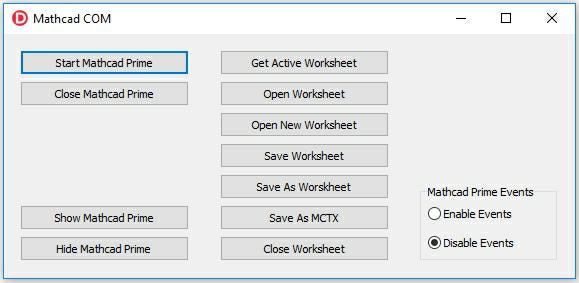
Check the features of your COM Client app:
- Click “Start Mathcad Prime” and wait until Mathcad Prime opens.
- Click “Show Mathcad Prime” to bring Mathcad Prime to the foreground.
- Click “Hide Mathcad Prime” to hide Mathcad Prime.
- Click “Open Worksheet” to browse to the worksheet that you want to open, then make sure that the worksheet is opened.
- Click “Open New Worksheet” and make sure that a new worksheet entitled Untitled-n is opened.
- Click “Close Worksheet” and make sure that the last opened worksheet is closed.
- To check the events:
- Click “Close Mathcad Prime” to close Mathcad Prime, and close the project.
This article was written by Embarcadero Tech Partner Softacom. Softacom specialize in all sorts of software development focused on Delphi. Read more about their services on the Softacom website.


Reduce development time and get to market faster with RAD Studio, Delphi, or C++Builder.
Design. Code. Compile. Deploy.
Free Delphi Community Edition Free C++Builder Community Edition