


MCPConnect is a framework for building Model Context Protocol (MCP) servers with Embarcadero Delphi & C++Builder. It uses attributes (for C++Builder there is a function-based registration mechanism) to turn your existing Delphi classes and business logic into MCP tools, resources and prompts, while the library takes care of serialization, routing and context management on the server side of the MCP protocol.
MCPConnect is developed by Paolo Rossi and Luca Minuti and released as open source under the MIT license. The project started in July 2025 (the first commit on GitHub is dated August 12, 2025) and has grown quickly since then, also thanks to contributions from the community.
ℹ️ Official Documentation
The complete MCPConnect documentation is available at mcpconnect.delphiblocks.dev
Table of Contents
An introduction to MCP
The Model Context Protocol is a protocol introduced by Anthropic in 2024 to standardize the way large language models (LLMs) talk to external systems. On their own, LLMs can only produce text (tokens): they can’t act on the outside world, and they can only answer with what they learned during training.
OpenAI tried to solve a similar problem back in 2023 with “function calling”. Most other vendors copied the idea, but each implementation was tied to its own API, so anyone who wanted to support more than one model had to write the same integration several times. MCP fixes this with a single, vendor-neutral protocol: you write the server once and any compatible host can use it.
Some typical uses of MCP:
- Databases: query InterBase, PostgreSQL, Firebird or SQLite for data analysis
- Filesystem: read, search and analyze local files
- Browser automation: web scraping, automated testing, interacting with web applications
- Third-party services: Slack, GitHub, Linear, Jira and similar
- Internal tools: give the LLM access to your company’s APIs and systems
- Data processing: work on Excel, CSV or other formats with your own logic
- Existing Delphi applications: expose the code you already have (a FireDAC query, an invoicing module, a report generator) without rewriting it in another language
What is the architecture of an MCP server and client?
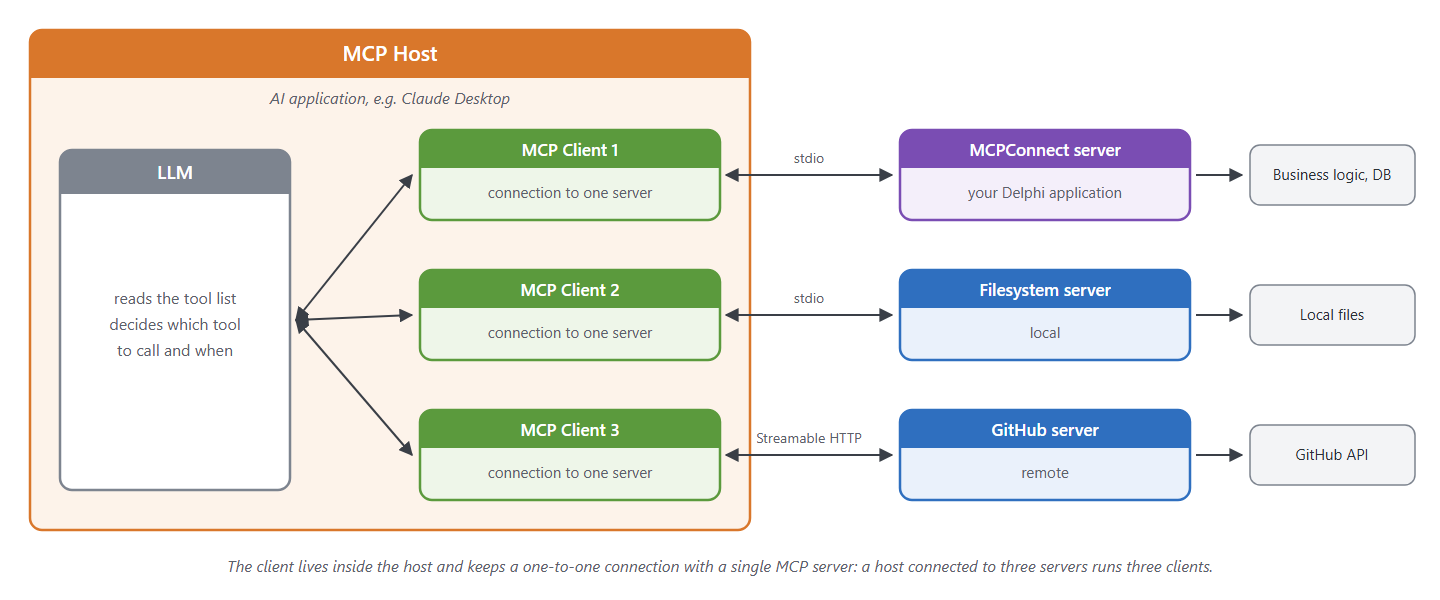
The MCP architecture has three parts:
- MCP Host: the AI application that uses MCP, for example Claude Desktop.
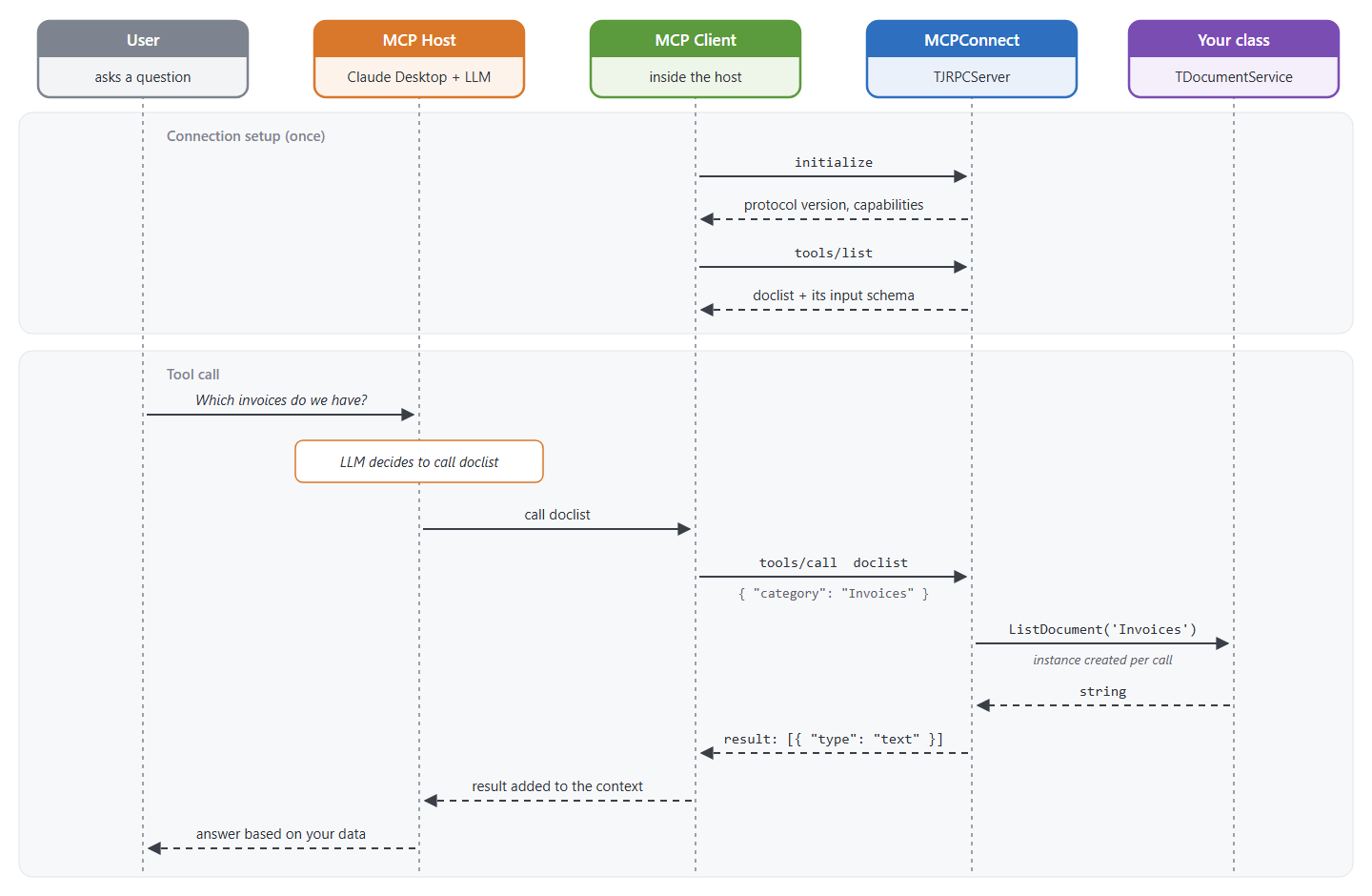
- MCP Client: runs inside the host and keeps the connection with one MCP server, passing the data it gets from the server to the host. A host connected to several servers runs one client for each of them.
- MCP Server: the program that provides the context, answering the requests that the host sends through the client.
How does MCPConnect handle MCP versions and different MCP specifications?
MCP is a versioned protocol. Each revision of the specification is named after its release date, and client and server agree on which one to use when they connect. So the MCPConnect version to pick depends on the specification you want to support:
- 2025-11-25: the package in Embarcadero GetIt (Tools > GetIt Package Manager in RAD Studio) implements the 2025-11-25 MCP specification specification. It’s the stable release and the easiest way to start.
- 2026-07-28: support for the 2026-07-28 MCP specification specification is being developed in the
feature/mcp-2026-07-28branch on GitHub. It’s still a pre-release, but you can already test it and use it if you need the new features.
ℹ️ Note
The examples in this article refer to the GetIt version (2025-11-25).
How to create your own MCP server
The server is the part that does the actual work: reading documents, running database queries, sending emails or messages, syncing a calendar, and so on.
For this, the protocol defines three building blocks, and MCPConnect supports all of them:
- Tools: functions the LLM can decide to call. A tool can query a database, call an external API, modify files or run any other code.
- Resources: read-only data that the LLM can ask for and add to its context, like documents, files or any other kind of structured data.
- Prompts: templates the user can invoke (usually by typing a slash followed by the name) to generate a prompt for a specific task.
If you have a TDocumentService class that implements some tools, the server configuration looks like this:
uses
  MCPConnect.JRPC.Server,
  MCPConnect.MCP.Server.Api, // This registers the standard MCP API
  MCPConnect.Configuration.MCP,

  Demo.DocumentService; // Unit with your MCP classes

// Create the JSON-RPC Server
FJRPCServer := TJRPCServer.Create(Self);
FJRPCServer
  .Plugin.Configure<IMCPConfig>
    .Server
      .SetName('delphi-mcp-server')
      .SetVersion('2.0.0')
    .BackToMCP
    .Tools
      .RegisterClass(TDocumentService)  // Register your tool class here
    .BackToMCP
  .ApplyConfig;
The configuration is split into sections (.Server, .Tools, .Resources, .Prompts, …). .BackToMCP closes a section and goes back to the MCP configuration; .ApplyConfig closes the whole plugin and goes back to the server, so you can chain another .Plugin.Configure<...> after it.
What are the details of the MCP transport protocol?
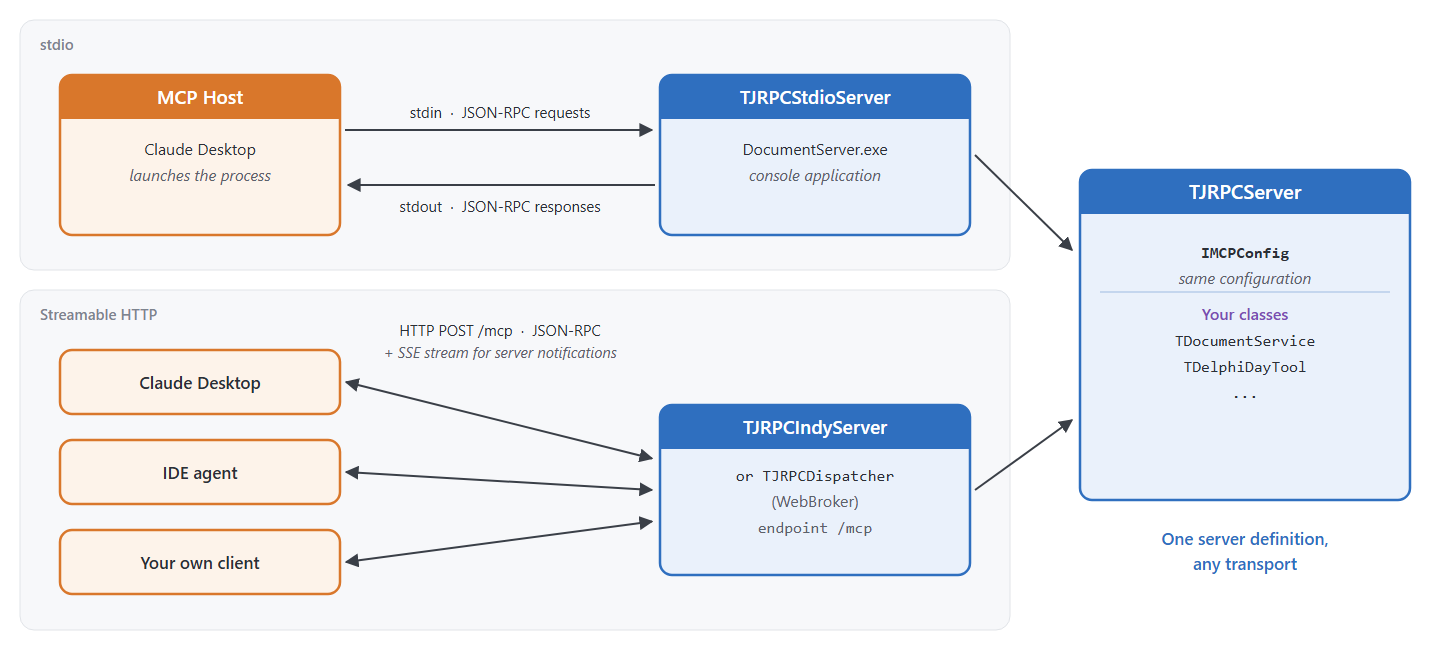
MCP messages are encoded with JSON-RPC, and the protocol supports two transports:
- Stdio: the server is a console application that reads requests from standard input and writes responses to standard output, a bit like the old CGI.
- Streamable HTTP: plain HTTP, with the option of keeping the connection open so the server can send notifications to the client without polling.
ℹ️ Note
In the 2026-07-28 version the JSON-RPC layer is no longer embedded in MCPConnect, it’s now a separate library, Delphi-JRPC. It implements JSON-RPC 2.0 (server and client) with no dependency on MCP, so you can use it in any Delphi application that needs to expose or call remote APIs. MCPConnect uses it as a dependency, and its units have lost the MCPConnect. prefix (MCPConnect.JRPC.Server becomes JRPC.Server, for example).
| Aspect | stdio | Streamable HTTP |
|---|---|---|
| Scope | Local | Local + remote |
| Deployment | Launched by the host | Runs as a standalone service |
| Scalability | One client per process | Many concurrent clients |
| Security | Implicit (local process) | Must be configured (token, OAuth) |
| Server notifications | Limited | Full support |
| Debug | Harder | Simpler |
| Typical use | Dev / local tools | Production / cloud |
MCPConnect supports both. Which one to use depends on the kind of project and also on the development phase: debugging an HTTP server, for example, is much easier than debugging a stdio one. The server configuration doesn’t depend on the transport, so the same application can support both and pick one from a setting or a command-line parameter.
How to link Claude Desktop and other AI engines to your own MCP servers via Stdio
With stdio, the host (Claude Desktop, for example) starts your executable and talks to it through standard input and output. In MCPConnect all you need is a console application with a TJRPCStdioServer:
program DocumentServer;

{$APPTYPE CONSOLE}

uses
  System.SysUtils,
  MCPConnect.JRPC.Server,
  MCPConnect.MCP.Server.Api,
  MCPConnect.Configuration.MCP,
  MCPConnect.Transport.Stdio,

  Demo.DocumentService;

var
  LServer: TJRPCStdioServer;
begin
  LServer := TJRPCStdioServer.Create(nil);
  try
    LServer.JRPCServer
      .Plugin.Configure<IMCPConfig>
        // ... same configuration as before
      .ApplyConfig;

    // Blocks until the client closes the pipes
    LServer.StartServerAndWait;
  finally
    LServer.Free;
  end;
end.
⚠ Warning
In a stdio server the standard output belongs to the protocol. If you need to log something, write to ErrOutput or to a file, never with a plain Writeln.
The easiest way to do it is to use Logify, the logging library that MCPConnect already depends on. Logify is a logging facade: your code (and MCPConnect itself, which uses it for its own protocol traces and timings) writes to a single Logger, while the actual destination is decided by the adapters you register at startup. For example, the debug adapter sends the messages to OutputDebugString, so you can read them in the RAD Studio Event Log while debugging, and they never touch the standard output:
uses
  Logify, Logify.Adapter.Debug;

// At startup: route all the log messages to OutputDebugString
TLoggerAdapterRegistry.Instance.RegisterFactory(
  TLogifyAdapterDebugFactory.CreateAdapterFactory('Debug log', TLogLevel.Debug));

// Anywhere in your code (tools included)
Logger.LogDebug('Listing documents for category %s', [ACategory]);
To keep a log outside the debugger, register another adapter (one that writes to a file, for example); your logging code stays the same. Setting the level to Info instead of Debug hides MCPConnect’s per-request messages.
How to us Streamable HTTP for MCP communications
For HTTP you can choose between Indy (TJRPCIndyServer, a standalone HTTP server) and WebBroker (TJRPCDispatcher, for standalone, ISAPI or CGI WebBroker applications). This is the Indy version:
uses
  MCPConnect.JRPC.Server,
  MCPConnect.MCP.Server.Api, // This registers the standard MCP API
  MCPConnect.Transport.Indy, // TJRPCIndyServer
  MCPConnect.Configuration.MCP,

  Demo.DocumentService; // Unit with your MCP classes

// Create the HTTP server: it creates and owns its own JSON-RPC server
FServer := TJRPCIndyServer.CreateMCPServer(Self);

// Configure the JSON-RPC Server (same code as before)
FServer.JRPCServer
  .Plugin.Configure<IMCPConfig>
    // ...
  .ApplyConfig;

// Start listening
FServer.DefaultPort := 8080;
FServer.Active := True;
CreateMCPServer creates the Indy HTTP server along with its TJRPCServer and hooks up the MCP request handling: JSON-RPC over POST, the SSE stream for notifications, CORS, sessions and authentication. Once the server is active, clients can connect to its address, for example http://localhost:8080/mcp. TJRPCIndyServer inherits from Indy’s HTTP server, so the usual Indy properties (Bindings, DefaultPort, an IOHandler for HTTPS, …) are all available.
An example of using MCP: Creating a writing tools MCP tool
With MCPConnect you can write an MCP server without dealing with the details of the protocol. Say you want to give the LLM a list of documents for a given category. In Delphi you’d write something like this:
TDocumentService = class
public
  function ListDocument(const ACategory: string): string;
end;
MCPConnect can handle more complex return types (TArray<TDocument>, TStringList, TImage, etc.), but the result ends up in the LLM’s context anyway, so a string is often all you need.
How ListDocument builds its result doesn’t matter: MCPConnect describes the method to the LLM, and the LLM decides when and how to call it.
For that, though, you have to tell the LLM what the class is for and what each method does. In MCPConnect you do it mostly with attributes:
TDocumentService = class
public
  // This method is published as an MCP tool
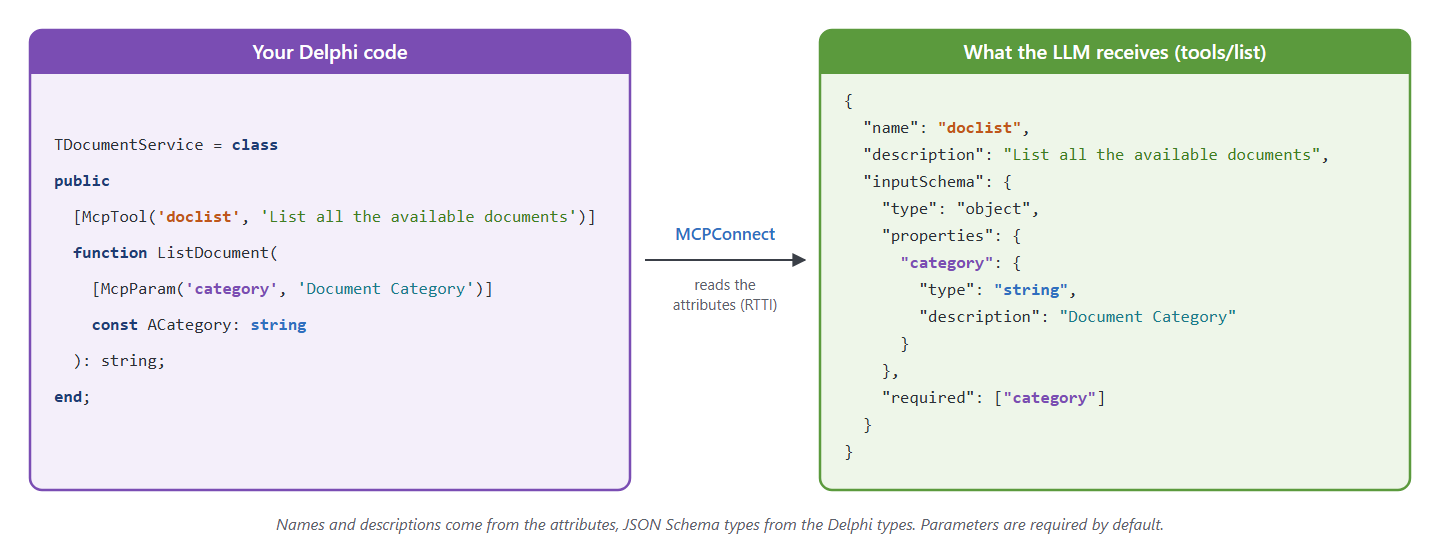
  [McpTool('doclist', 'List all the available documents')]
  function ListDocument(
    [McpParam('category', 'Document Category')] const ACategory: string
  ): string;

  // This method is NOT exposed because it lacks the [McpTool] attribute
  procedure InternalStuff;
end;
McpTool and McpParam take two parameters: a name and a description. The name is what the LLM sees (doclist and category in the example) and doesn’t have to match the Delphi method or parameter name, so your code can keep the usual Pascal naming conventions.
💡 Tip
The description is essential
The LLM relies on the description to understand what a tool or a parameter is for, whether to use it and how. So take the time to write it well: say what the tool does, what it returns and when to use it. 'List all the available documents' works, but 'Returns the title and date of the documents in a category; use it before reading a document' tells the LLM a lot more.
When the class is registered, MCPConnect reads these attributes through RTTI and builds the tool definition that the client receives and passes to the LLM:
At runtime, when the LLM decides to use the tool, the call goes from the host to your Delphi method and back:
How to send back results from your MCP tool to the AI model
In the example the tool returns a string. That’s often enough, but it depends on what the tool does. Roughly, tools fall into two groups:
- Operational: tools that do something, like writing files, changing data in a database or sending emails. The result can be just the outcome of the operation: a boolean, or a string describing the error.
- Informational: tools that look up data and add it to the context. Depending on the data, a string may be enough, or you may want a structured format.
MCPConnect takes care of the conversion: if the function returns an object, it’s serialized to the right format automatically.
One case is worth a closer look: the TContentList class. It maps directly to the tool result format defined by MCP, where a response can be made of several parts, each with its own type (text, image, audio, link, blob). TContentList has a fluent method for each type (AddText, AddImage, AddAudio, AddLink, AddBlob):
function TDelphiDayTool.BuyTicket(AId, AQuantity: Integer): TContentList;
begin
  var LTicketStream := FCart.BuyTicket(AId, AQuantity);
  try
    // The TContentList is freed by the framework after serialization
    Result := TContentList.Create
      .AddText('Purchase completed successfully.')
      .AddImage('image/png', LTicketStream); // The stream is read and base64-encoded
  finally
    LTicketStream.Free;
  end;
end;
How to handle MCP session management in your own code
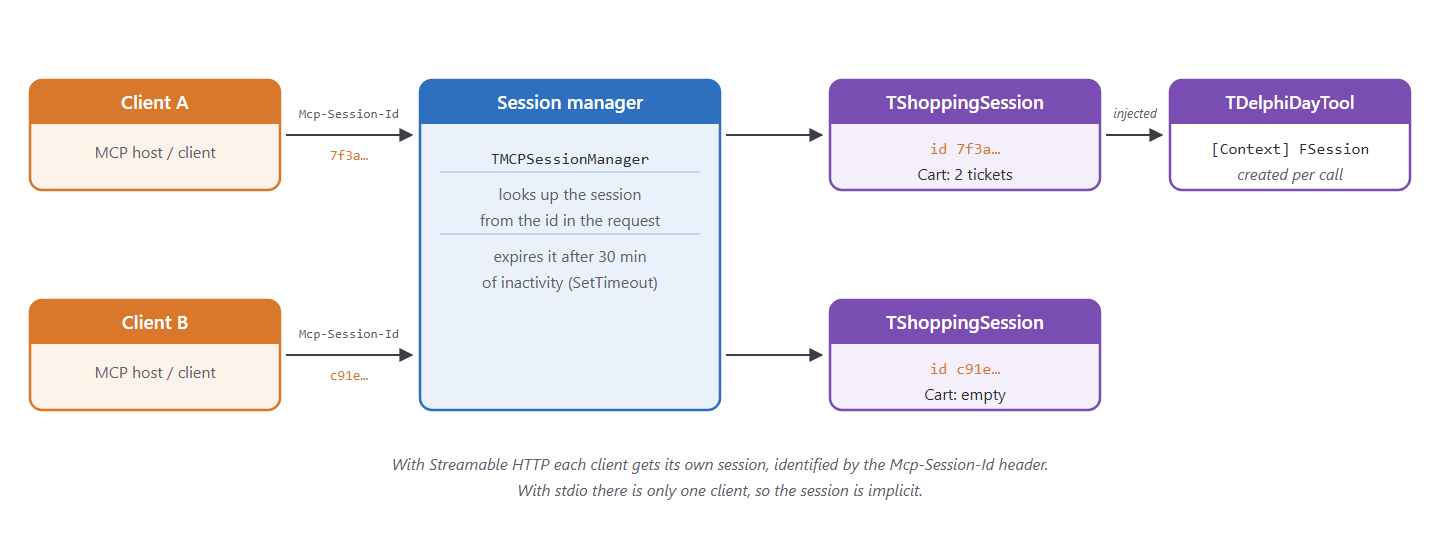
MCP has the concept of a session, which is implicit with stdio and explicit with Streamable HTTP.
⚠ Warning
The next version of MCPConnect (the one for the 2026-07-28 specification) removes sessions completely. If you want your code to keep working, don’t rely on sticky sessions unless you really need them. Keep your tools stateless and pass the state they need explicitly, as tool parameters or as an identifier (a cart ID returned by an earlier tool call, for example) that points to data you store yourself.
MCPConnect manages sessions for you, and every tool can read and write data in the current session. The session can be a TMCPSessionData (which stores its data as JSON) or any class derived from TMCPSessionBase.
The following code configures a custom session class (TShoppingSession) that keeps the shopping cart while the user builds an order:
uses
  ...
  MCPConnect.Configuration.Session,
  MCPConnect.Session.Core;

type
  TShoppingSession = class(TMCPSessionBase)
  private
    FCart: TObjectDictionary<string, TCartItem>;
  public
    constructor Create;
    destructor Destroy; override;
    property Cart: TObjectDictionary<string, TCartItem> read FCart;
  end;

begin
  ...
  FJRPCServer
    .Plugin.Configure<ISessionConfig>
      .SetLocation(TSessionIdLocation.Header) // default
      .SetHeaderName('Mcp-Session-Id') // default
      .SetTimeout(30)  // 30 minutes timeout (default)
      .SetSessionClass(TShoppingSession)  // Use custom typed session
    .ApplyConfig;
Inside a tool class, the current session is injected into a field marked with the [Context] attribute:
  TDelphiDayTool = class
  private
    [Context] FSession: TShoppingSession;
  public
    [McpTool('cart_clear', 'Removes all the tickets from the shopping cart')]
    procedure ClearCart;
  end;

//-----

procedure TDelphiDayTool.ClearCart;
begin
  FSession.Cart.Clear;
end;
Conclusion – A summary of what we learned about MCP and The MCPConnect Tool
MCPConnect is a young library, but it already covers a lot. In this article I’ve only touched on the main topics. You’ll find the full documentation on the MCPConnect documentation and the source code on Project’s GitHub Home. The demos in the repository cover many other cases and are a good way to see how the pieces fit together.
To get started, open the stdio demo in Demo/MCPServerSimple/Stdio and connect it to Claude Desktop: in a few minutes you’ll see the LLM calling your Delphi code.
Other features of MCPConnect that I haven’t discussed but plan to write about soon include:
- Resources, resource templates and prompts
- MCP Apps (interactive HTML UIs rendered by the host)
- Context injection
- Fluent configuration
- Garbage collection
- Tools namespacing
- Security (token and OAuth authentication)
This is a guest blog post by MVPs Paulo Rossi and Luca Minuti, creators of MCP Connect.



Reduce development time and get to market faster with RAD Studio, Delphi, or C++Builder.
Design. Code. Compile. Deploy.
Free Delphi Community Edition Free C++Builder Community Edition


