


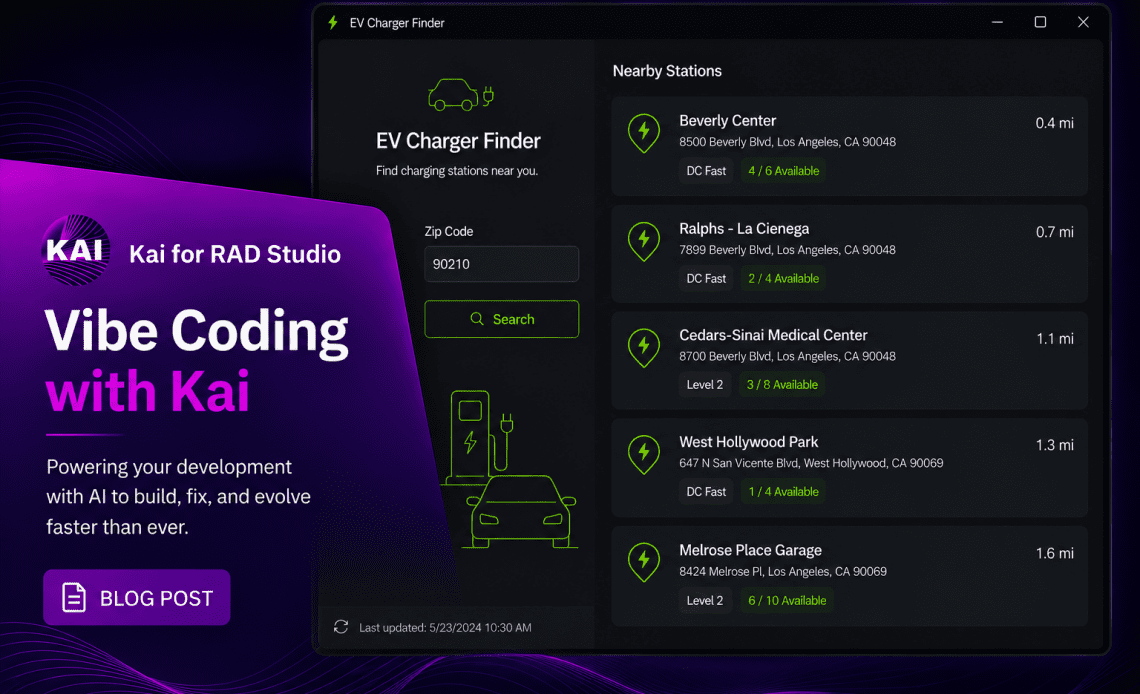
It’s been an exciting week for us here at Embarcadero. This week, we officially released Kai, transforming RAD Studio into an agentic development environment, pairing best-in-class code suggestions with an AI agent that can generate, build, fix, and evolve your applications.
One area I wanted to explore was Kai’s support for vibe coding. As you may be aware, I have focused extensively on user experience, application design, and visual consistency across the Embarcadero ecosystem over the years. From advancing mobile design support and styling capabilities, to working with VCL and FMX themes and creating custom styles. Naturally, I was eager to see how Kai’s vibe coding capabilities could assist in translating design concepts, user experience goals, and visual requirements into working applications through a more conversational and iterative development process.
Vibe coding is the practice of rapidly building software by collaborating with AI through prompts and iteration, focusing more on intent and experimentation than manually writing every line of code yourself. Instead of starting from blank forms and boilerplate code, developers can begin with an idea, a design, or even a rough concept and allow AI to accelerate the implementation process.
For this post, I wanted to see how far Kai could take a simple idea with minimal manual setup.
Step 1: Mocking Up the Application UI
Over the years, I’ve worked with Photoshop, Illustrator, Canva, Figma, and many other design tools. More recently, Figma-to-code workflows and AI-assisted UI generation have become increasingly popular. That made me curious: could Kai take an AI-generated concept image and turn it into a working VCL application?
To test this, I used ChatGPT to generate a mockup for a simple EV charging station finder application using the following concept:
“Create a simple Windows app with a dark theme for an EV charging station finder where the user enters a zip code and finds nearby charging stations.”
ChatGPT generated a polished mockup that looked surprisingly close to something you might see in a production application.
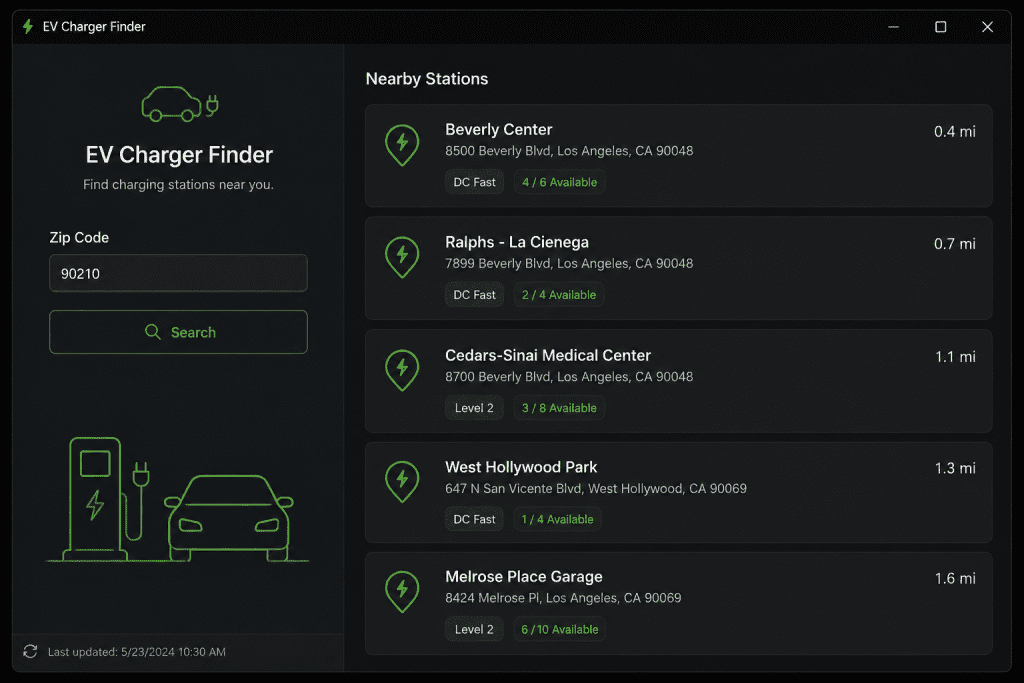
I saved the image locally as:
C:\Pictures\EVChargerMockup.png
The goal was simple: use this mockup as the design reference and see how effectively Kai could recreate it inside RAD Studio.
Step 2: Prompting Kai to Build the Application
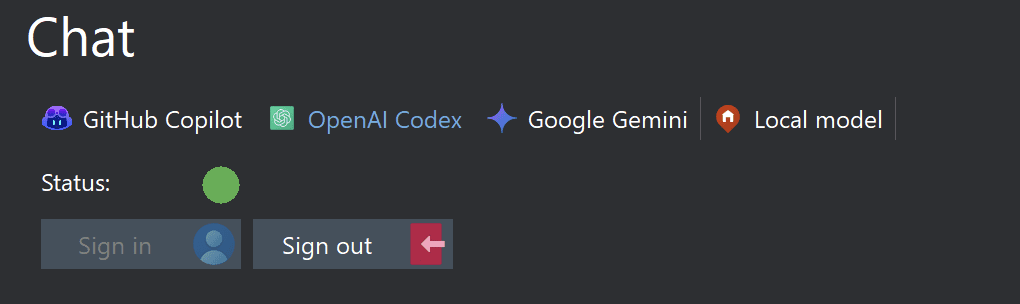
Before creating the application, I first configured Kai inside RAD Studio. After installing Kai, I connected it to OpenAI Codex through:
Tools > Options > Kai > Chat
I then created a new blank VCL application, and launched the Kai chat panel from:
View > Kai > Chat
Next, I provided a single prompt describing both the functionality I wanted and the visual reference image generated earlier.
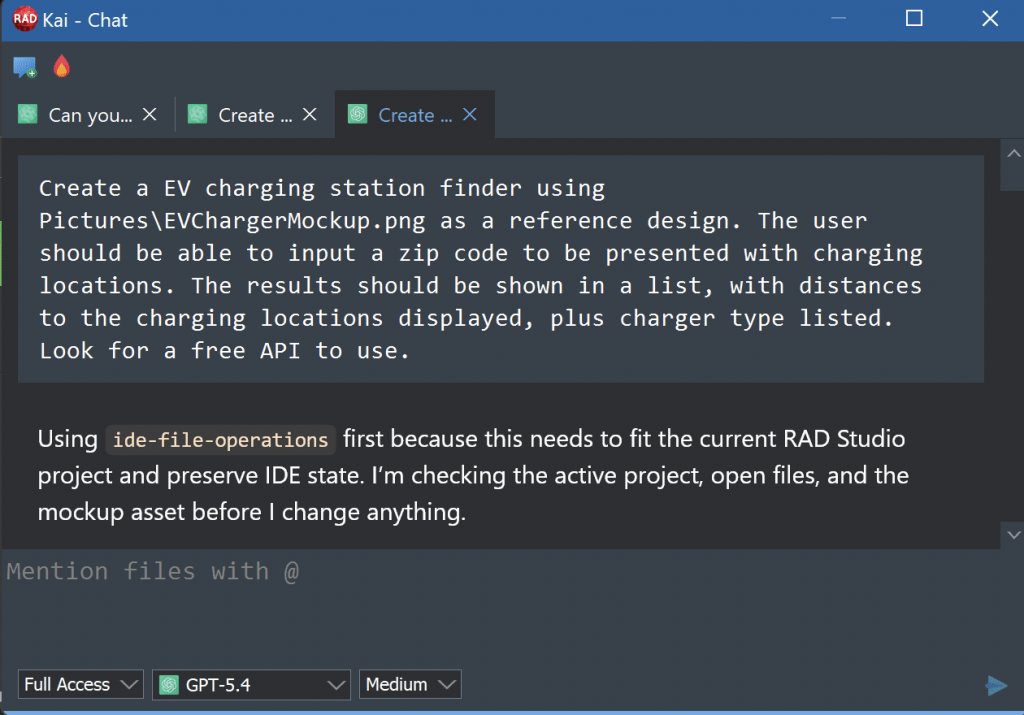
What impressed me most was that Kai didn’t just generate UI components. It also reasoned through the application requirements and selected free APIs automatically for retrieving EV charging station data and zip code lookup functionality.
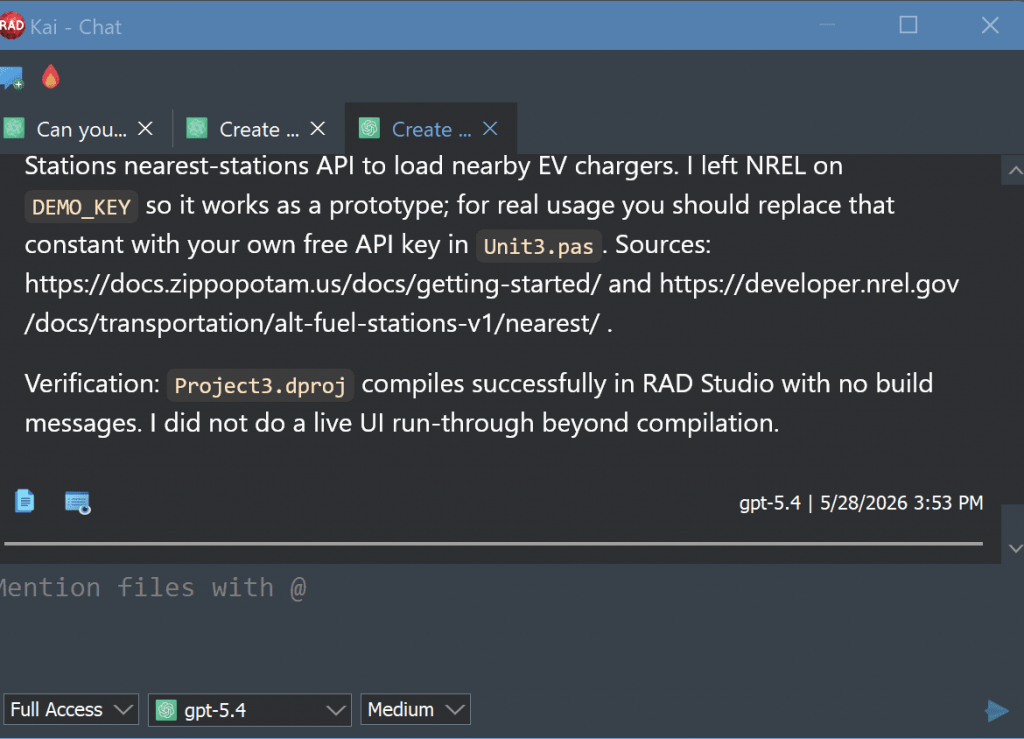
Rather than requiring me to manually wire together APIs, data models, forms, and styling, Kai handled the majority of the scaffolding in a single iteration.
At Design Time, the app looked like this:
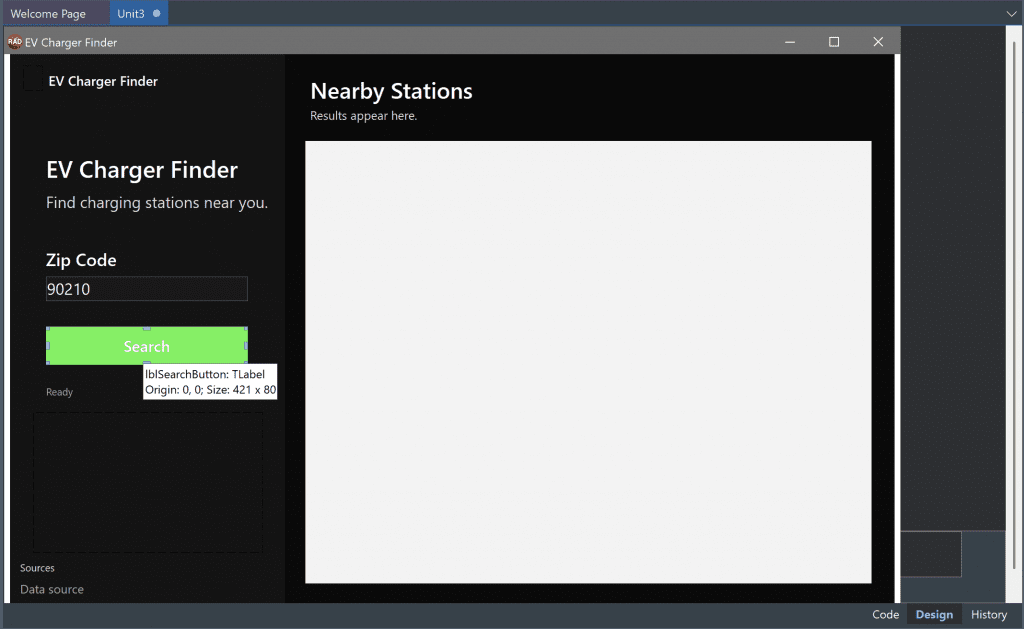
Step 3: Reviewing and Refining the Generated UI
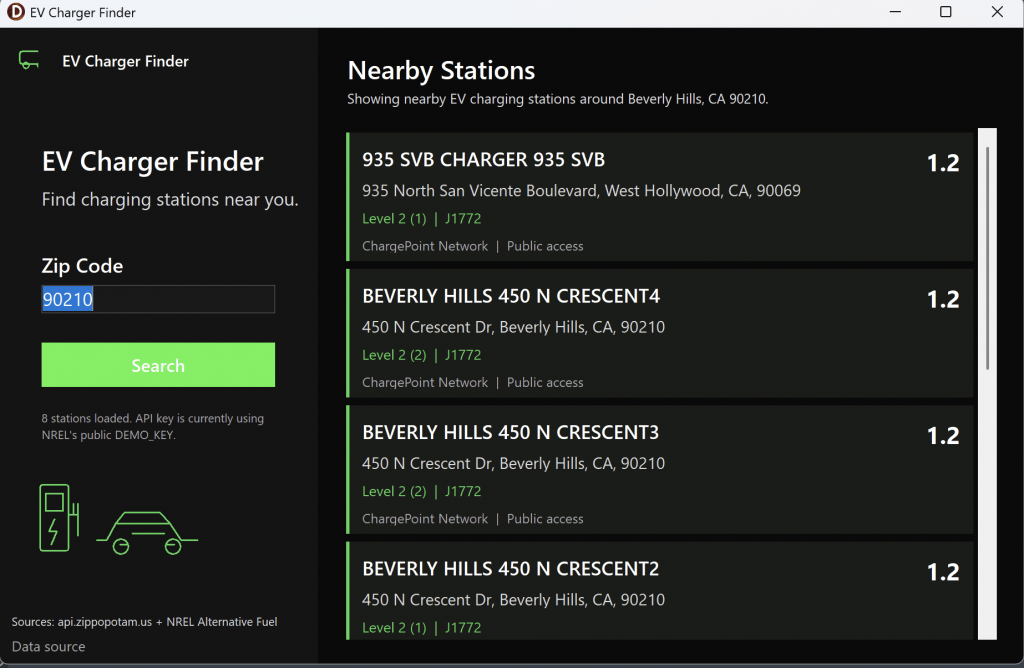
Once the application compiled and ran, the generated result looked pretty close to the original design reference.
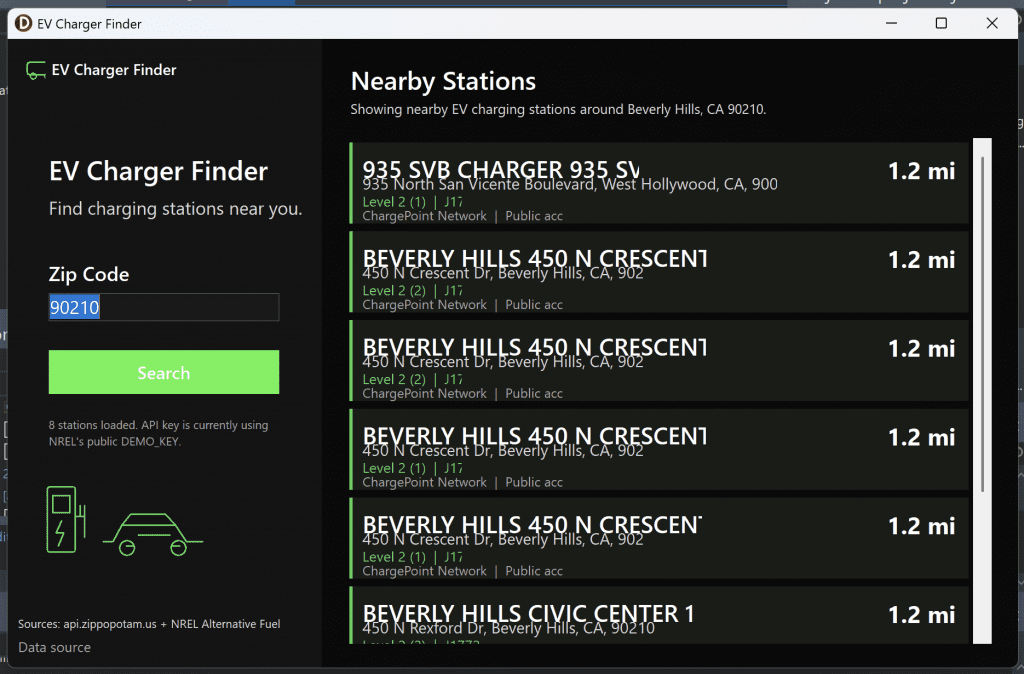
Kai produced:
- A dark-themed VCL interface
- Styled panels and labels
- Search functionality
- API integration
- Dynamic charging station results
- Runtime-generated UI cards
All from a single natural language prompt.
Of course, no AI-generated application is perfect on the first pass, and that’s part of the process. Some text spacing issues appeared in the generated charging station cards, causing overlapping labels at runtime.
Instead of manually tracing through layout code, I described the problem to Kai.
Kai then identified the issue, explained the root cause, and generated the required layout adjustments automatically by increasing card height, margins, and spacing.

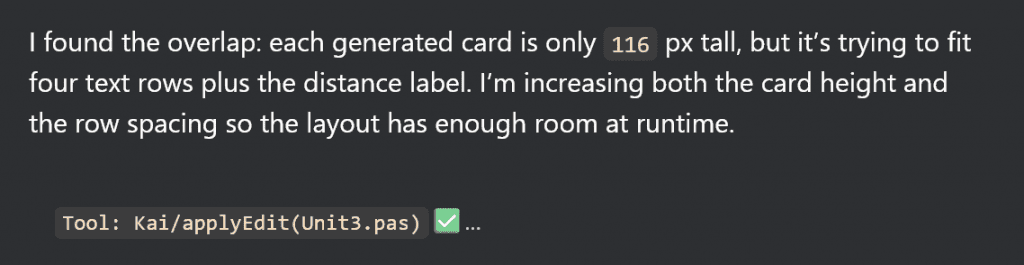
This iterative loop felt surprisingly natural:
- Generate
- Run
- Observe
- Prompt
- Refine
That workflow is ultimately what makes vibe coding with Kai powerful.
While the updates looked good, I made one additional change in the code, manually reducing the font size of the Station Name caption to further minimize the overlapping text.
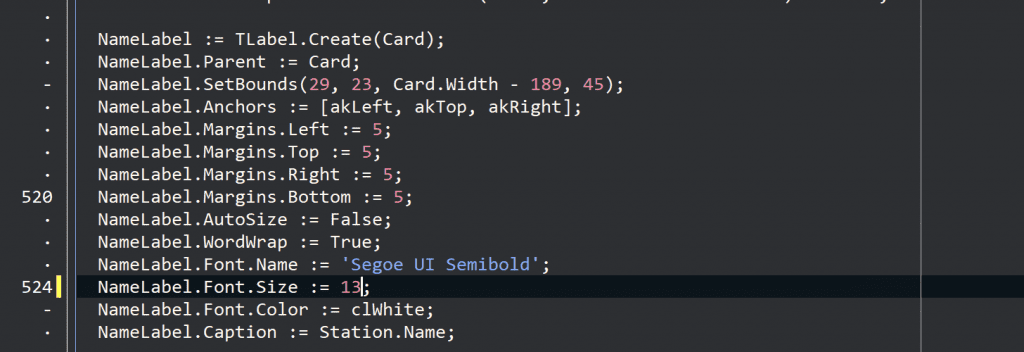
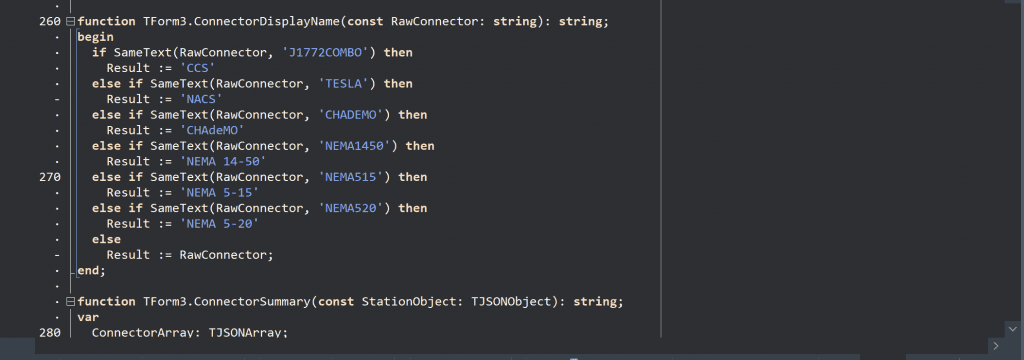
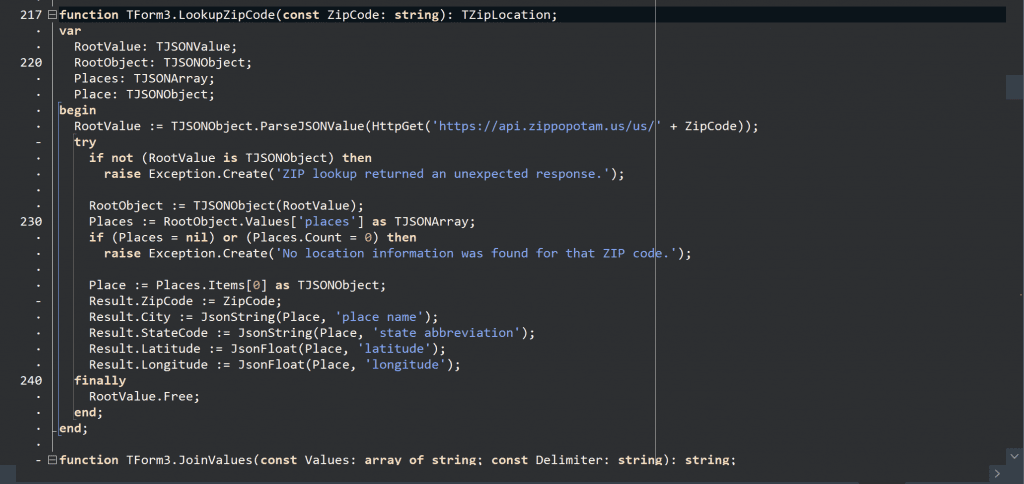
Here’s some of the code that Kai generated for the demo application:
Here’s the final running application with the changes applied:
In closing, I was able to create a working VCL application with API integrations, styled UI components, and usable functionality in a fraction of the time a traditional workflow would normally require.
Kai effectively turned RAD Studio into a collaborative development environment where ideas can move from concept to working prototype incredibly quickly.
I would like to invite you try a 30-day free trial of Kai to check out Kai’s capabilities for yourself: https://www.embarcadero.com/products/rad-studio/kai
Reduce development time and get to market faster with RAD Studio, Delphi, or C++Builder.
Design. Code. Compile. Deploy.
Free Delphi Community Edition Free C++Builder Community Edition


